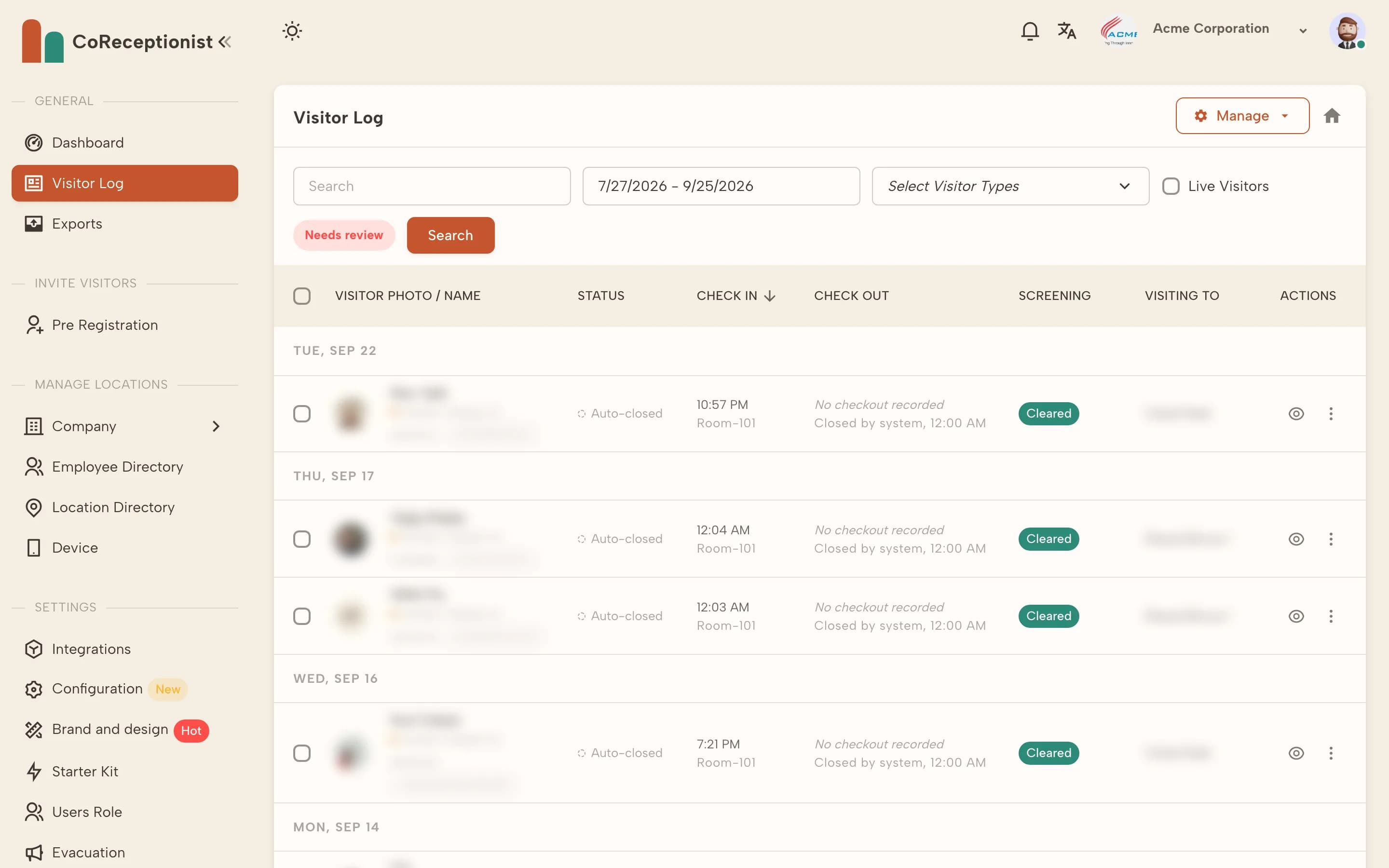
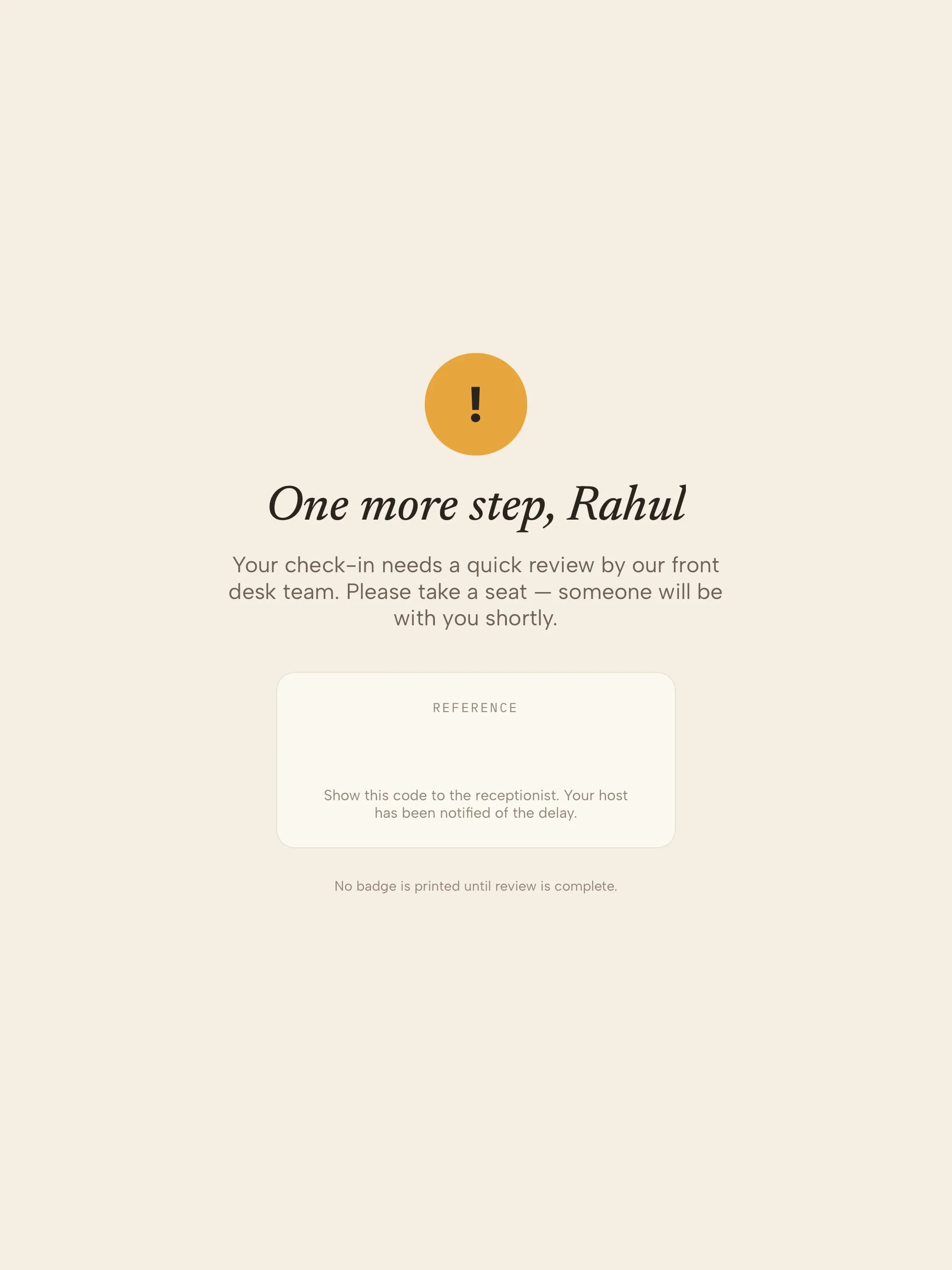
When a visitor matches, they wait at the kiosk and no badge prints until someone reviews the match.
1
Get alertedHosts chosen in ITAR Configuration are emailed. The dashboard's Pending Screening Alerts card shows how many are waiting.
2
Open the matchIn the Visitor Log, use Needs review, then View details on the visitor. The ITAR Screening section shows the list, the matched name and the match score.
3
Record a decisionUnder Admin Review, choose Cleared, Confirmed match or Escalated and add notes. The decision is kept for your audit trail.
4
What the visitor seesThe visitor sees "One more step" and is asked to take a seat until your team follows up.
TIPUnreviewed matches are escalated and re-alerted after a set time.