Badges print automatically at check-in for visitor types with badge printing turned on.
1
Load the roll and power onLoad a 62 mm DK-2205 or DK-2251 roll, close the cover and turn the printer on. Make sure it's on the same Wi-Fi as the tablet, or has Bluetooth on.
2
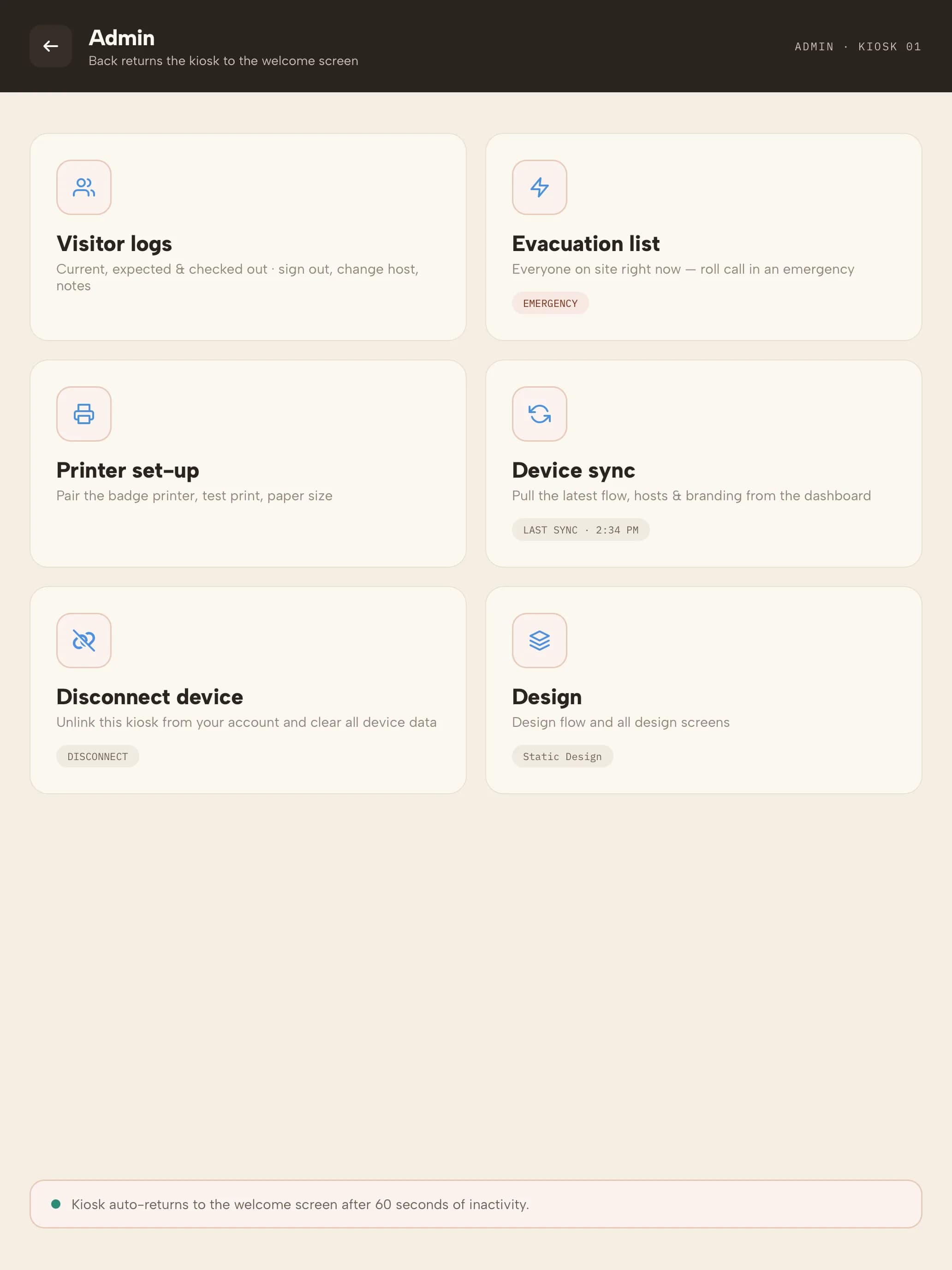
Open printer set-upOn the kiosk, hold the company name or logo for 5 seconds, then choose Printer set-up.
3
Select the printerTap Refresh and choose your QL-820NWB from the list.
4
Choose the rollSelect the roll you loaded. That applies the right label size and print settings. Or use Find printer and auto-set up roll to do both at once.
5
Print a test badgePrint a test badge to confirm the layout, then return to the welcome screen.