More offices are running their lobbies without a full-time receptionist — not to cut corners, but because hybrid schedules leave the front desk quiet for much of the week. An unstaffed reception can work well, as long as the things a receptionist did quietly still happen: greeting visitors, finding hosts, handling deliveries, and knowing who is in the building.
This guide covers what an unstaffed front desk needs, how to set one up, and when you still want a person at the desk.
Why businesses are moving to unstaffed reception
- Hybrid traffic is uneven. Busy Tuesdays and empty Fridays make full-time front-desk cover hard to justify.
- Visitors expect self-service. They check in for flights and order coffee on a screen; a kiosk feels normal.
- Reception staff have bigger jobs. Office managers and coordinators often cover the desk between other work.
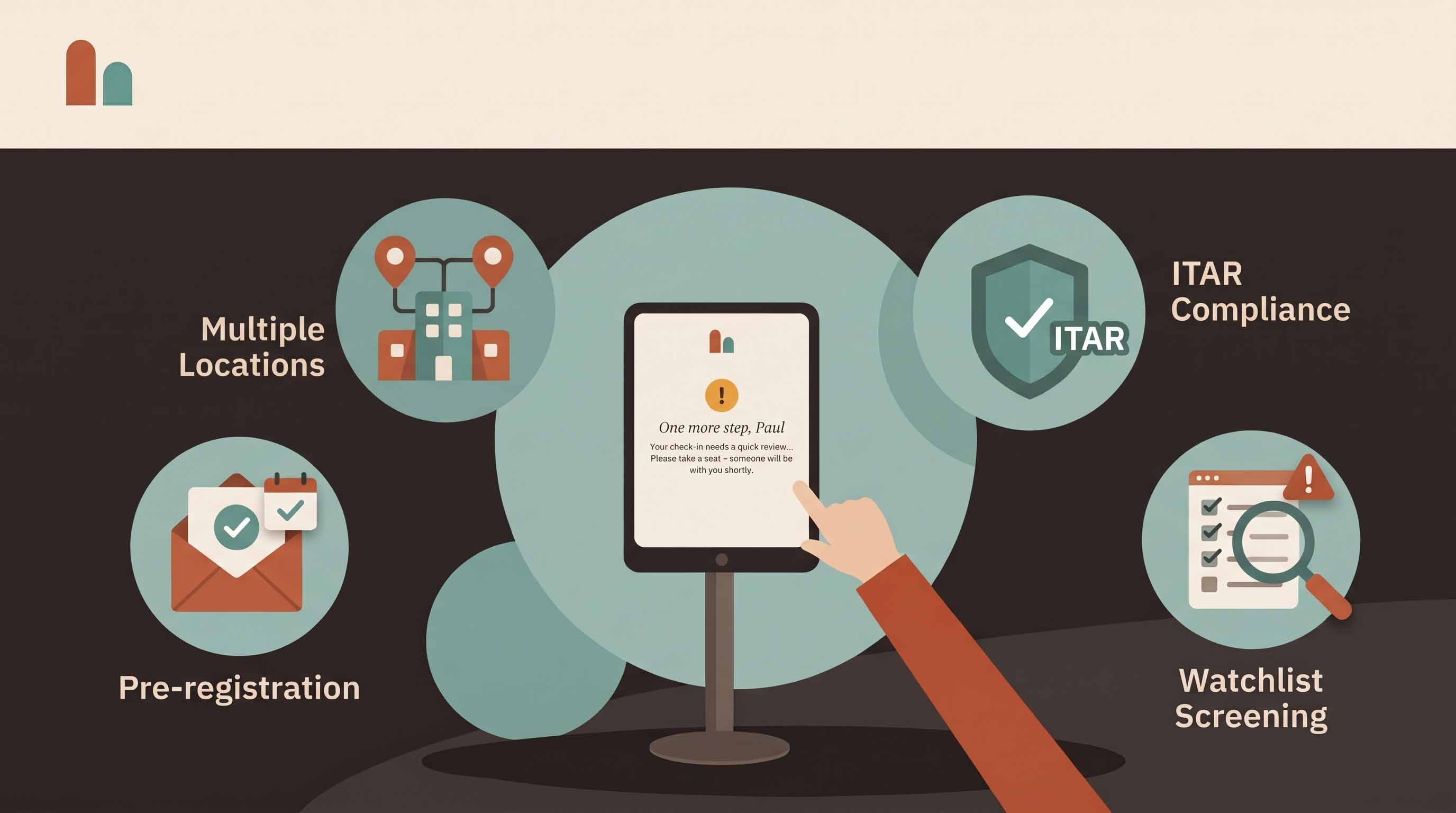
- Multi-site teams want consistency. The same check-in at every location, whether or not someone is at the desk.
What a receptionist did that a self-service desk must replace
Greeting and signing in. A tablet kiosk at the entrance with your brand on the welcome screen, plus touchless QR check-in for invited guests.
Finding the host. Automatic alerts by email, SMS, Slack or Microsoft Teams the moment the visitor checks in.
Printing a badge. A badge printer beside the kiosk prints name, photo and host automatically.
Getting forms signed. NDAs, site rules and induction videos completed on the kiosk before entry, with a copy emailed to the visitor.
Spotting someone who shouldn't be there. Screening against your own watchlist — and, for regulated sites, denied-party lists — with a discreet hold and an alert to the people you choose.
Handling deliveries. A delivery flow that notifies the recipient, so couriers aren't left with nobody to sign.
Knowing who is in the building. A live visitor log and an evacuation roster you can open from the kiosk.
How to set up an unstaffed front desk
- Place the kiosk where visitors look first. Facing the entrance, at a comfortable height, with clear signage. See kiosk placement.
- Set up visitor types. Guests, contractors, interviews and deliveries each get their own questions, documents and badge.
- Load the employee directory. Host alerts only work if every host is listed with current contact details.
- Turn on pre-registration. Ask hosts to invite expected guests so most arrivals scan a QR code and go.
- Decide who handles exceptions. Name the people who receive screening alerts and the fallback contact for visitors whose host doesn't answer.
- Close the loop on check-out. Check-out at the kiosk by name or visitor code, plus auto check-out each night, keeps the on-site list accurate.
- Lock down the hardware. Pair each kiosk with a one-time code, so it can be revoked remotely if the tablet goes missing. Visitor records live in the cloud, not on the device.
Security in an unstaffed lobby
An empty desk changes your security model, so plan for it:
- Physical access still matters. A kiosk records visitors; it doesn't lock doors. Keep controlled areas behind doors, and badge visitors so staff can spot anyone unbadged.
- Screening needs an owner. If check-in is held for review, someone has to review it — quickly.
- Evacuations still need a warden. The roster tells them who is inside; the warden still runs roll call.
When you still want a person at the desk
Self-service handles routine arrivals well. Keep a person available — even part-time or on call — for:
- High-volume moments, such as interview days or events
- Sites where many visitors need help, such as clinics or schools
- Escorted visits in controlled facilities
- VIP guests who should be greeted personally
Many teams run a hybrid model: the kiosk handles everyday check-ins, and staff step in for the exceptions.
How CoReceptionist supports unstaffed reception
CoReceptionist turns an iPad or Android tablet into a visitor check-in kiosk with your branding, touchless QR check-in, per-visitor-type flows, host alerts by email, SMS, Slack and Microsoft Teams, badge printing, documents signed at the door, screening with a discreet hold, a delivery flow and a live evacuation roster. Most teams are set up in under an hour.
Frequently asked questions
Is an unstaffed reception secure? It can be, if visitors are registered, badged and screened at check-in, controlled areas stay behind locked doors, and someone owns screening alerts. A self-service kiosk usually produces a more complete record than a busy receptionist with a paper book.
What happens if a visitor's host doesn't respond? Agree a fallback contact — an office manager or security desk — and show how to reach them on the kiosk's welcome screen.
What hardware do we need? A tablet and a stand. A badge printer is optional.
Ready to try a self-service front desk? See the visitor management system guide or start a 14-day free trial.