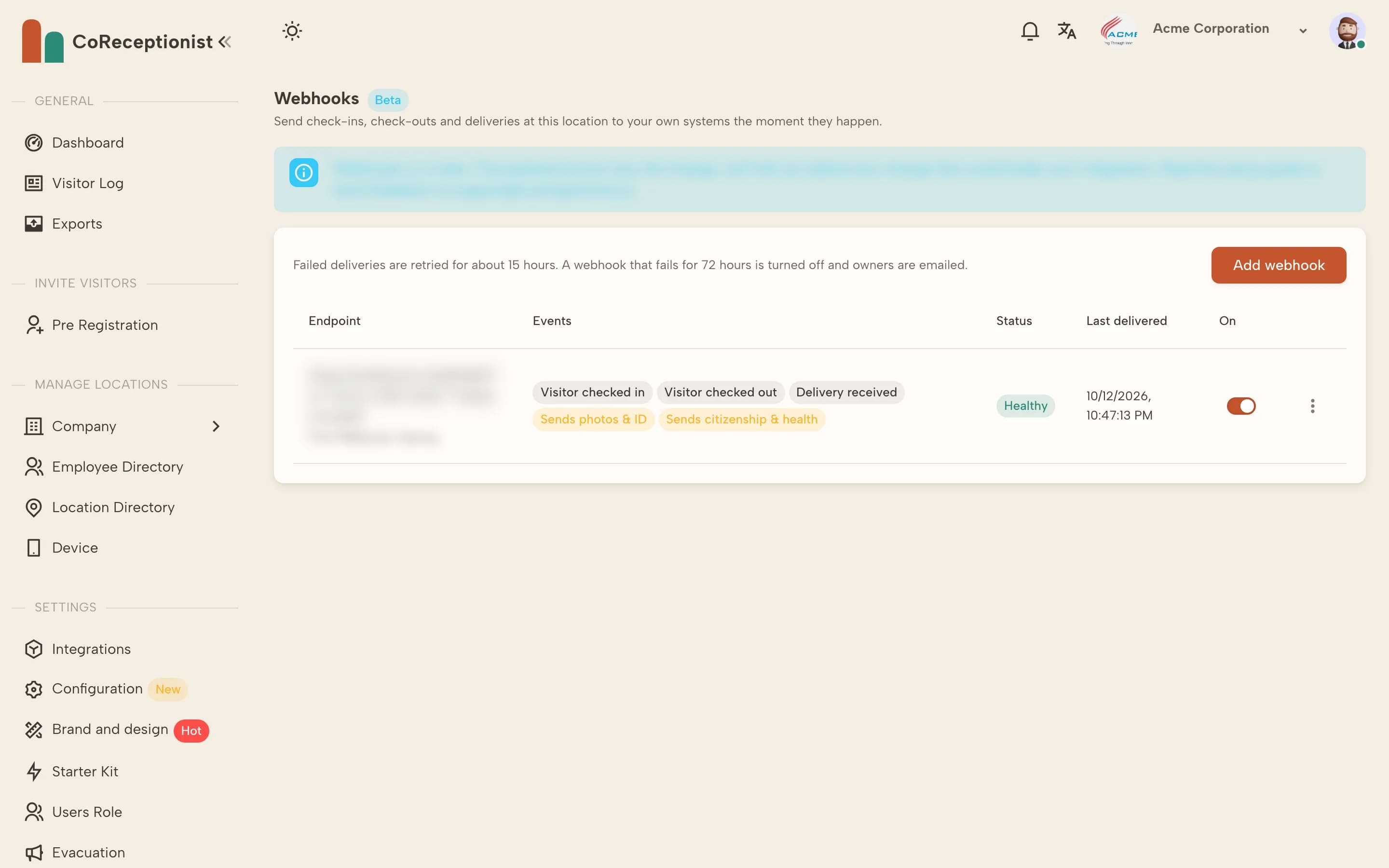
A webhook sends a secure message to a web address you choose every time something happens at a location — for example, to play a welcome video in the lobby when a visitor checks in, or to update another system. Webhooks is a paid add-on, currently in beta.
1
Turn on the add-onWebhooks is turned on per location. Ask your account manager or support@coreceptionist.co to enable it for each location that needs it. Until then, the Webhooks page explains the add-on instead of showing settings.
2
Open WebhooksIn the dashboard, open Integrations → Webhooks → Configuration. Only the Account Owner and Location Owners can see and change webhooks. Each location has its own webhooks — switch locations from the top bar to set up another.
3
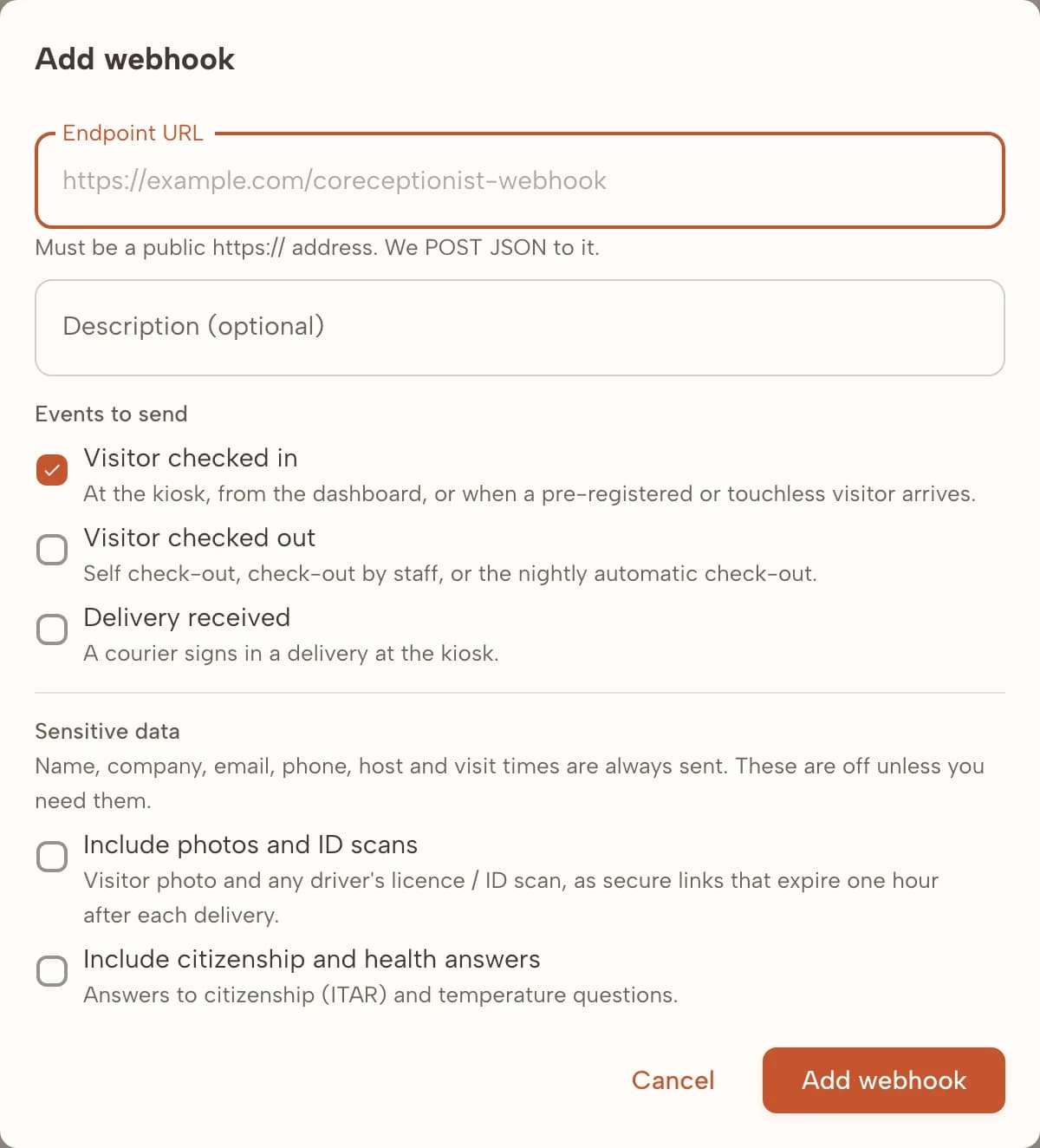
Add a webhookChoose Add webhook and paste the endpoint URL — the address of the system that will receive the events. It must be a public https:// address. Add a description so your team knows what it is for, then choose the events to send: Visitor checked in, Visitor checked out and Delivery received.
4
Choose what data to shareEvery event includes the visitor's name, email, phone and company, the visitor type, the host, check-in and check-out times, the kiosk and the location, plus their answers to other sign-in questions. Two kinds of data are off unless you turn them on: photos and ID scans (sent as secure links that stop working one hour after each delivery), and citizenship and temperature answers. Only turn these on if the receiving system needs them and is secured accordingly — the change is recorded with your name and the time.
5
Give the signing secret to whoever builds the receiverAfter saving, the signing secret (it starts with whsec_) is shown. The receiving system uses it to check that each request really came from CoReceptionist. You can show it again or replace it later from the ⋮ menu. Treat it like a password.
6
Send a test eventFrom the ⋮ menu choose Send test event. A sample check-in with a fictional visitor is sent straight away, and you see the result — for example, Test delivered — HTTP 200. The sample is marked "test": true.
7
Check that real events arriveCheck a visitor in at a kiosk. The event is normally delivered within a couple of seconds. Delivery history in the ⋮ menu lists every event sent to that webhook for the last 14 days, with the response from your system, and lets you resend one.
8
Turn off or deleteUse the switch to pause a webhook, or Delete in the ⋮ menu to remove it. If an endpoint fails every delivery for 72 hours, CoReceptionist turns it off and emails the location's owners; fix the receiver and switch it back on.
TIPEach location can have up to 10 webhooks — for example one for a lobby display and one for an automation tool.